An organization is an independent workspace and billing boundary. Each organization has its own API keys, balance, usage history, and billing activity. Members of a team organization share access to those resources according to their roles.
The organization selected in the Dashboard header is the current organization. Every organization-aware page—including Overview, API Keys, Logs, and Billing—shows and changes data for that organization only.
For example, an API key created while Acme AI is current belongs to Acme AI. Switching to your personal organization does not move or reveal that key there.
Choose the right organization
Every account starts with a personal organization. Use it for work and billing that belong only to you. Create a team organization when several people need to share the same API keys, balance, usage, and billing information.
| If you need to… | Use |
|---|---|
| Keep API keys and billing private to your account | Your personal organization |
| Let teammates work with the same resources | A team organization |
| Separate two projects’ keys, usage, or billing | A separate organization for each project |
Switch organizations
Open the account menu in the Dashboard header, then select an organization. The Dashboard reloads API keys, usage, balance, billing, and permissions for the selected workspace.
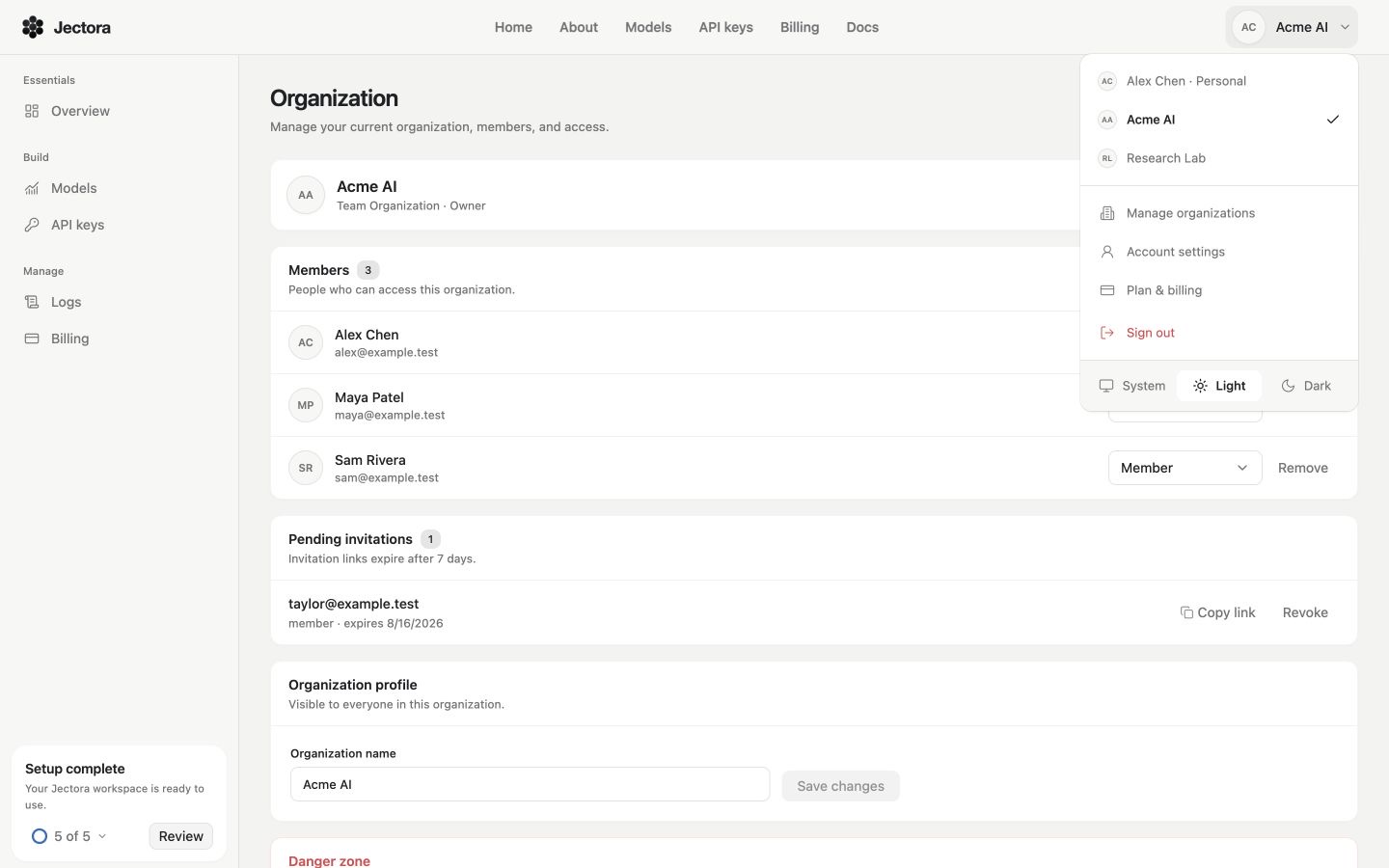
The checkmark identifies the current organization. Select another entry to switch the data and permissions shown throughout Dashboard. All names and account details in this screenshot are sample data.
Personal and team organizations
| Organization type | Intended use | Membership |
|---|---|---|
| Personal | Resources owned by your individual account | Only you; it cannot be shared, left, or deleted |
| Team | Shared API keys, usage, balance, and billing | Owner, admins, and members |
Your personal organization is created automatically. A team organization has its own balance and API keys; it does not share resources with your personal organization or another team.
Manage the current organization
Open Organization from Manage organizations in the account menu. The page shows only the current organization. Switch organizations from the header first when you need to manage a different workspace.
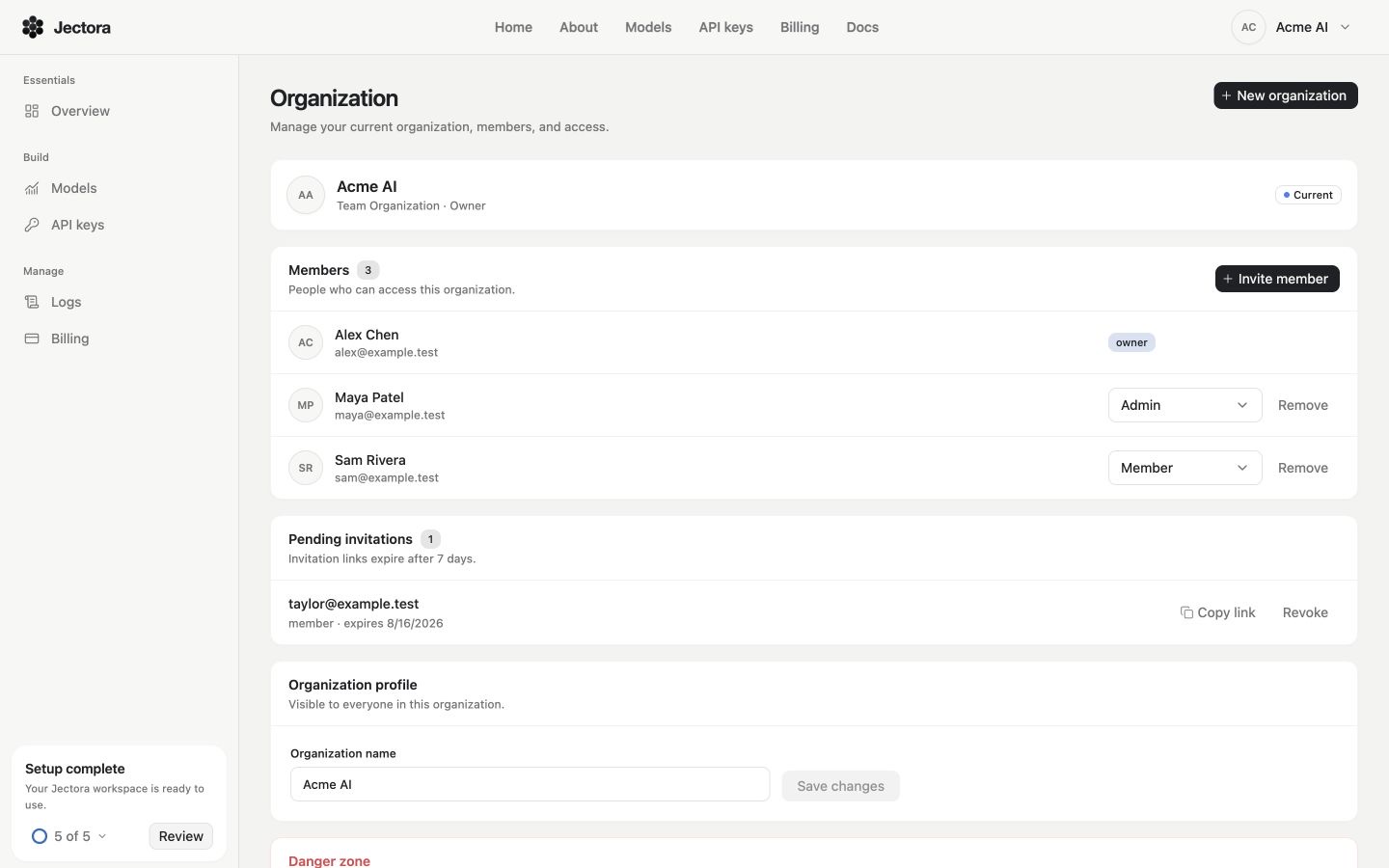
Owners can manage members, pending invitations, the organization name, and destructive actions from one page. Every value shown is sample data.
Create a team organization
- Open Organization.
- Choose New organization.
- Enter a name with at least two characters.
- Choose Create organization.
The new team organization becomes a separate workspace. Add funds and create new API keys for it instead of expecting resources from another organization to appear automatically.
Invite members
Owners and admins can create invitations from the Members section:
- Choose Invite member.
- Enter the email address the person uses for Jectora.
- Select the role available to you.
- Choose Create invitation, then share the copied link with that person.
Jectora does not send an invitation email. Invitation links expire after seven days. Until an invitation is accepted, you can copy its link again or revoke it from Pending invitations.
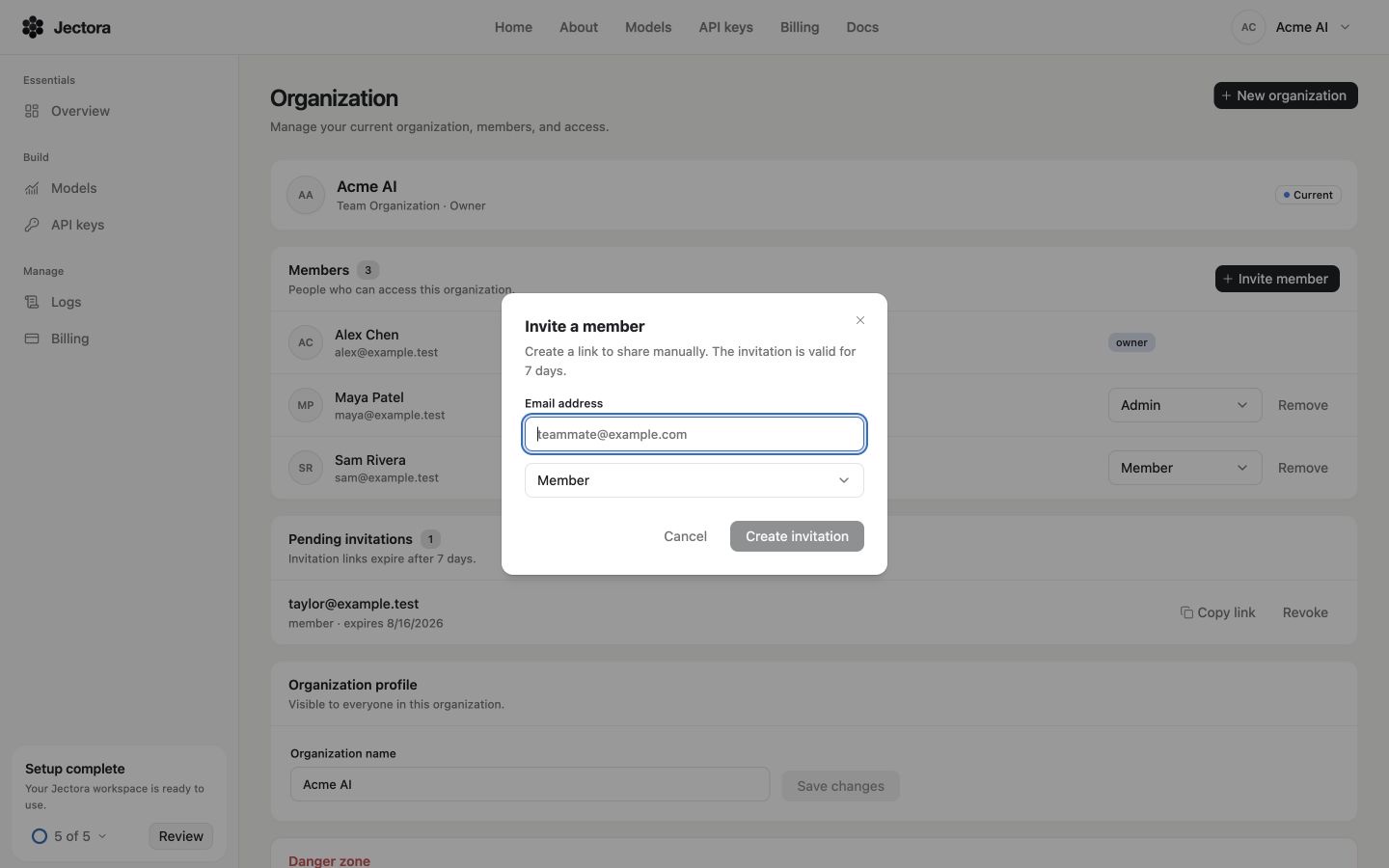
Choose Member for normal access. Only an owner can invite someone as an admin. The email address shown is sample data.
The invited person must sign in with the same email address, open the Organization page, and choose Accept or Decline. Accepting the invitation switches the Dashboard to that team organization.
Roles and permissions
| Action | Owner | Admin | Member |
|---|---|---|---|
| View organization resources | Yes | Yes | Yes |
| Invite a member | Yes | Yes | No |
| Invite an admin | Yes | No | No |
| Revoke a pending invitation | Yes | Yes | No |
| Remove a member | Yes | Yes | No |
| Remove an admin | Yes | No | No |
| Change member roles | Yes | No | No |
| Rename or delete the organization | Yes | No | No |
An admin can remove members but cannot modify another admin. The owner role cannot be reassigned from the Dashboard.
Change access
Owners can change an existing member between Member and Admin from the role selector. Owners and admins can choose Remove for people they are allowed to manage. Removal takes effect immediately and removes access to the organization’s keys, usage, and billing information.
Leave or delete an organization
- An admin or member can leave a team organization from its Danger zone.
- An owner cannot leave the organization; the owner can delete it instead.
- A personal organization cannot be left or deleted.
Deleting a team organization immediately removes memberships and pending invitations. Historical billing records are retained. Both leaving and deleting require confirmation, and a former member needs a new invitation to regain access.